Shengjian
A private classroom companion that connects bilingual captions, learning markers, and timestamped photos with replay, course organization, and study notes.
- Product & Interaction Design
- Full-stack Development
- AI Integration
- Period
- September 2026
- Status
- Deployed Web product · Invite-only
Case study at a glance
- Problem
- Bilingual learners need to follow a lesson and find the original passage during later review.
- Design decision
- Pair source and translation, connect paragraph timestamps to replay, and separate saving, transcript completion, and archiving.
- Result and scope
- An invite-only Web product with documented real use and isolated checks. A broader learner study remains proposed.
Jump to a section
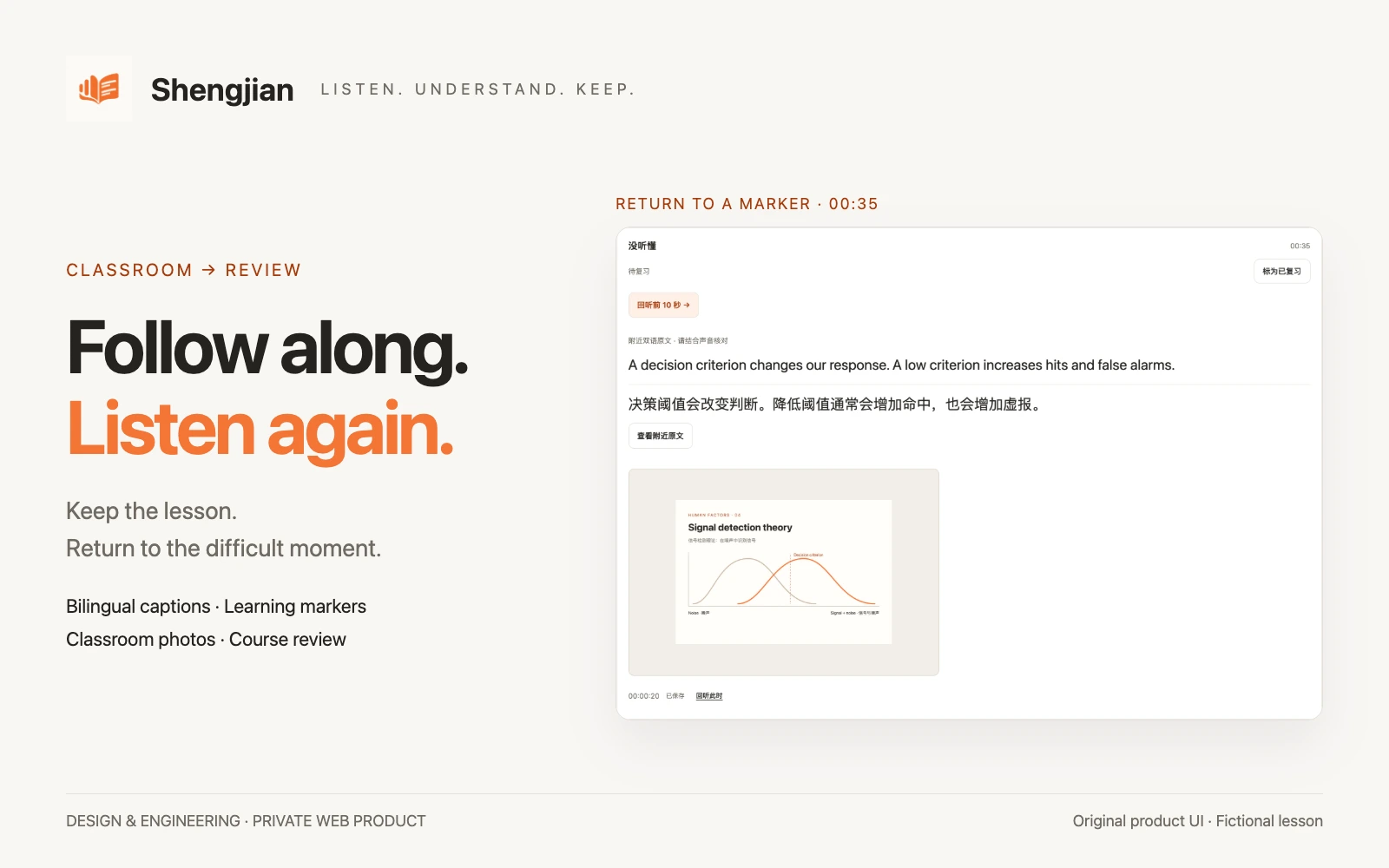
The problem: understanding now, finding it later
In a bilingual lesson, listening, comparing languages, and deciding what to write compete for attention. Captions help with immediate understanding, but reviewing a difficult idea later also means finding the question, the original audio, and the slide being discussed. I treated that transition from following a lesson to revisiting it as the core product problem.
The starting point was my own learning workflow and a second pre-created account, rather than interviews with a wider learner population. I owned product scoping, interaction design, browser audio capture, AI-service integration, storage and recovery, and deployment.
Design around the learning task
The workflow now spans preparation, live listening, and later review. These tasks describe the implemented product, not findings from a formal task study.
- 01
Prepare
Choose a course and language direction. Add recognition terms or explicitly reuse the course’s previous terms when useful.
- 02
Follow
Start recording and read paired original and translated text while keeping the lesson in view.
- 03
Keep
Mark a question or important point and save a classroom photo at its audio position.
- 04
Return
Replay a paragraph or start ten seconds before a marker, with nearby bilingual text and the preceding photo.
- 05
Review
Mark items as reviewed, revisit lessons by course, and check structured notes against the original material.
A 28-second product demo
Scope: a working Web product for a small, known audience
I chose a browser-based product for personal Mac and iPad use. Recording-only and live bilingual modes share a recording library. The current workflow adds optional course selection, recognition-term reuse, classroom photos, question and important-point markers, and manual review status alongside paragraph replay and study notes.
Course names organize a person’s recordings. Term reuse is explicit and uses the most recent completed live recording for that course; it is not a shared glossary or a guarantee that specialist words will be recognized correctly.
Capture still needs a foreground page and an awake screen. The product warns about that condition and responds to an interrupted microphone. Public signup, payment, and native-app distribution remain deferred.
Live: keep attention on the conversation
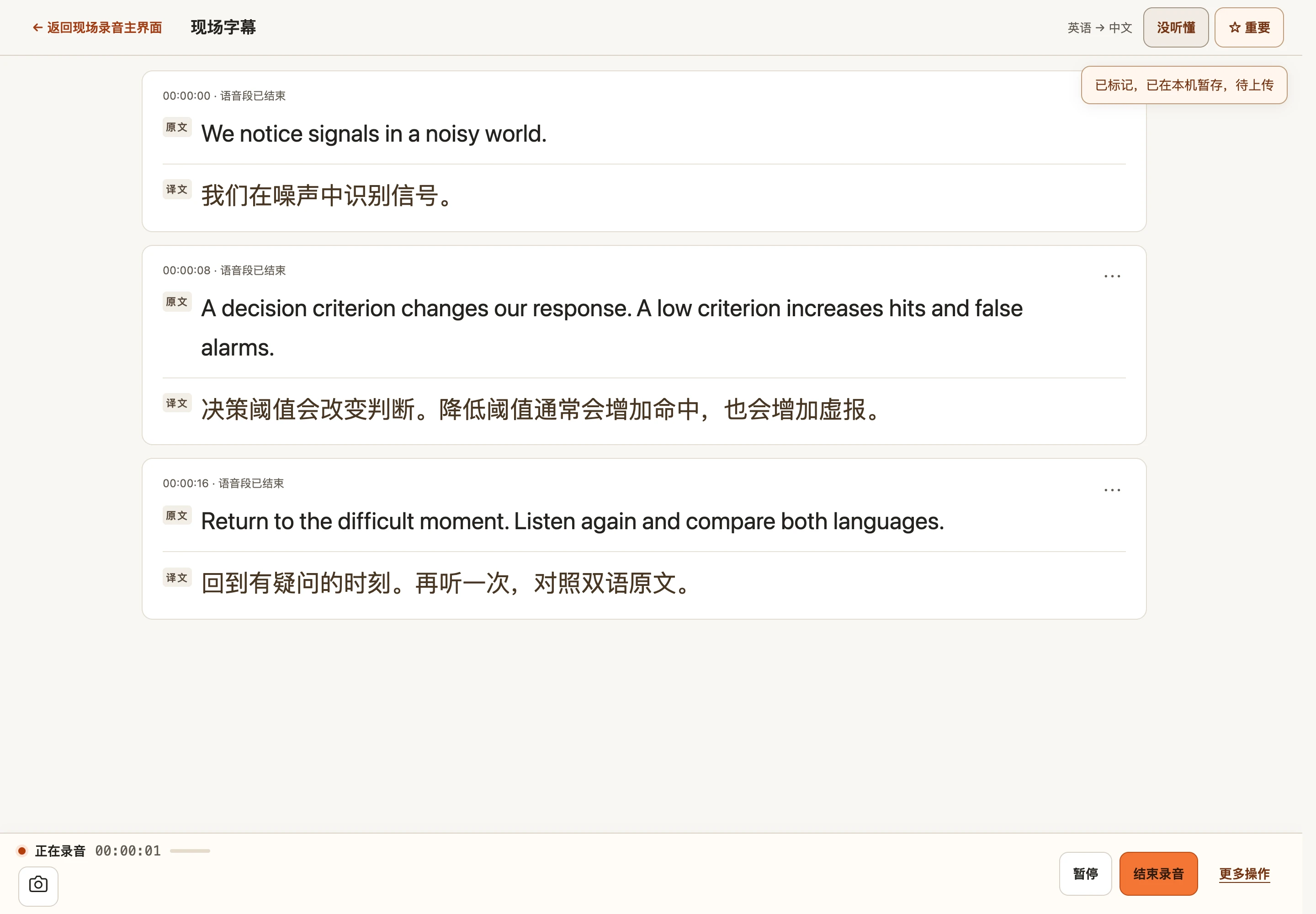
Once recording begins, inactive language and mode settings collapse while pause, finish, learning markers, and the camera remain reachable. This reserves more of the screen for the material being heard.
Original and translated text are paired in the same passage. Focus mode and font controls adjust reading without changing the recording state. Elapsed session time remains separate from saved audio duration, because a pause contributes to the former.
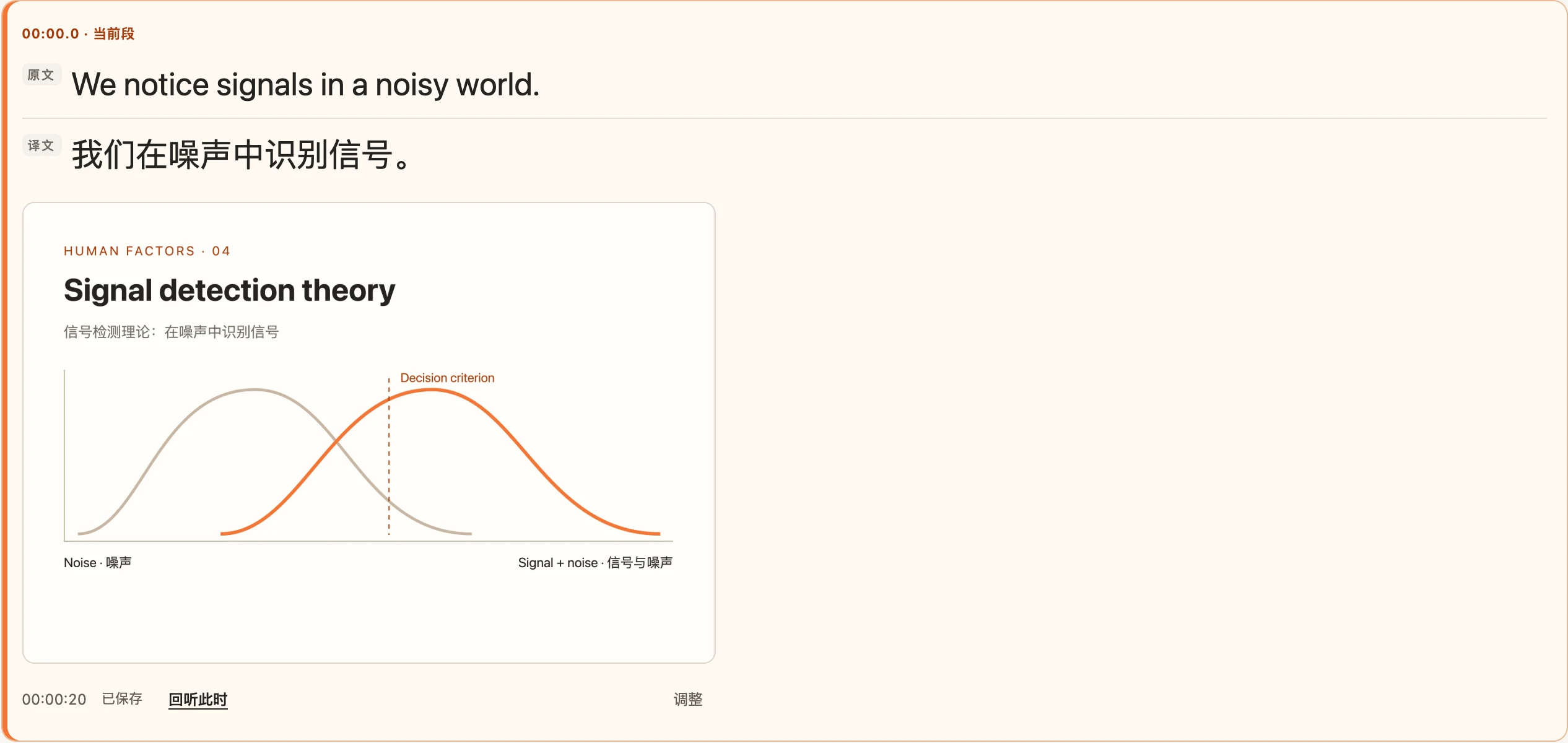
Keep the slide with the moment
A classroom photo keeps its position in the recorded audio. It appears alongside the relevant bilingual passage, or as a separate image card when there is no matching text. The learner can enlarge it, replay that moment, or adjust its placement.
Photos save through their own device queue, so an image-upload failure does not stop microphone capture. Audio can be saved while a photo is still pending; the interface keeps that distinction visible and waits for accepted photos before completing the cloud archive.
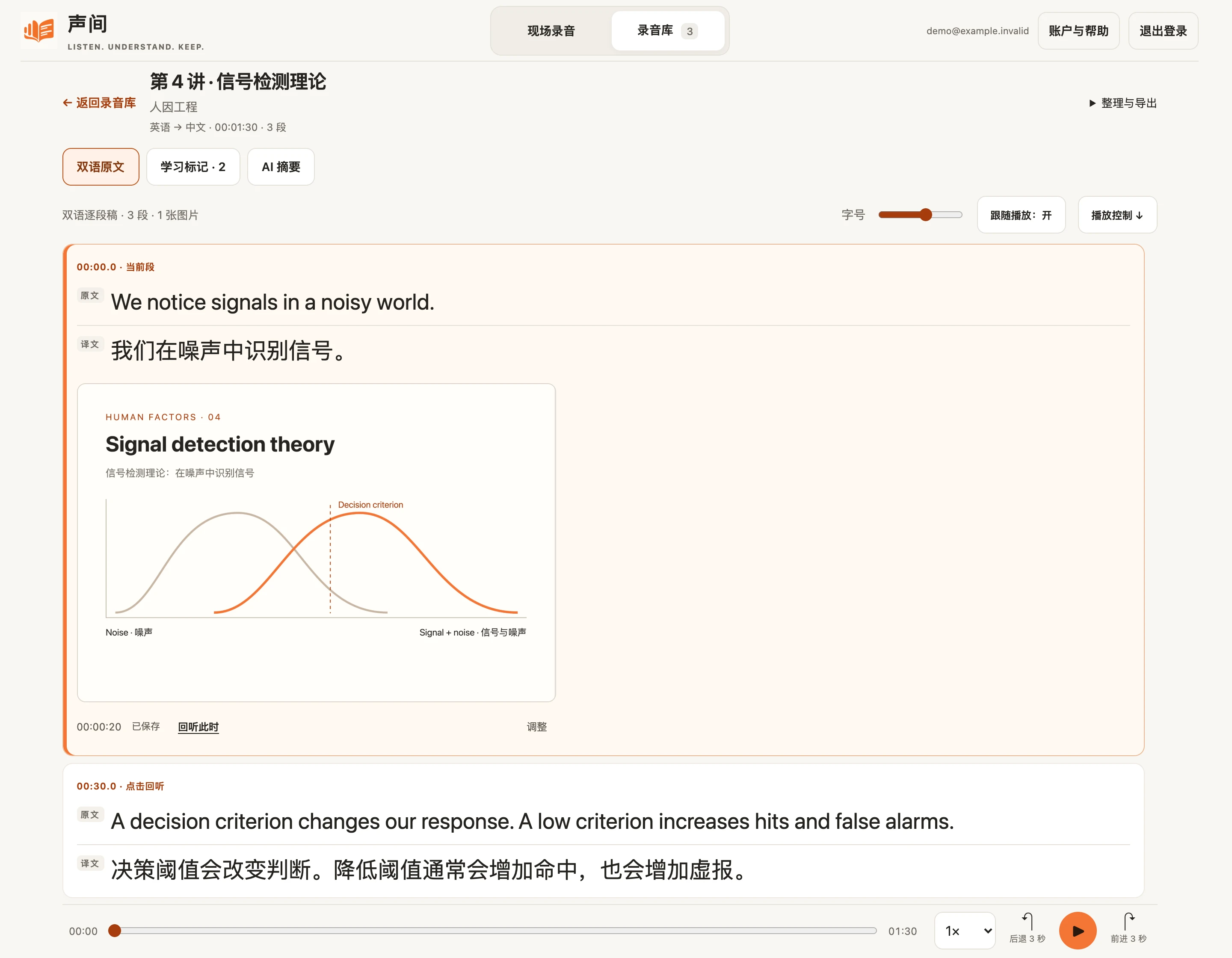
Replay: return to the difficult passage
Paragraph timestamps remain a direct route back to the original audio. A learner can replay the sentence they want to check, change speed, and use short skips without searching through an entire lesson.
Following the current paragraph helps during playback, while keyboard focus entering the text pauses following for deliberate reading. Photos also have their own replay action, and enlarging an image does not trigger paragraph playback.
Mark now, return after class
The live workspace offers two quick marks: a question and an important point. Each stores an audio position rather than a paragraph ID, so later transcript layout changes do not move the original moment.
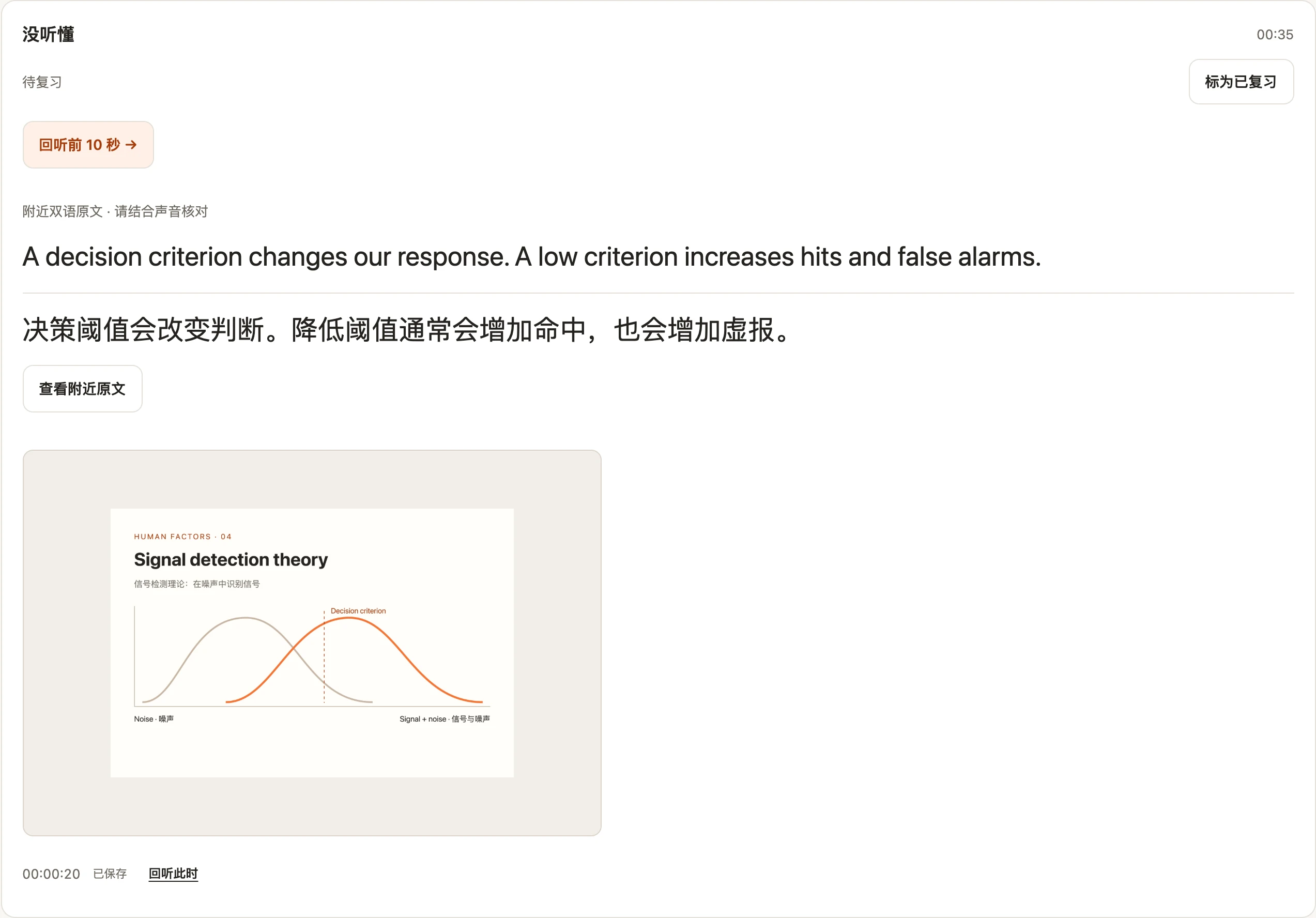
After class, a marker can replay from ten seconds earlier and show nearby bilingual text plus the nearest preceding classroom photo. The learner explicitly marks it as reviewed, can filter pending or reviewed items, and can change it back. Reviewed records an action; it does not certify understanding or transcript accuracy.
Review: check notes against the source
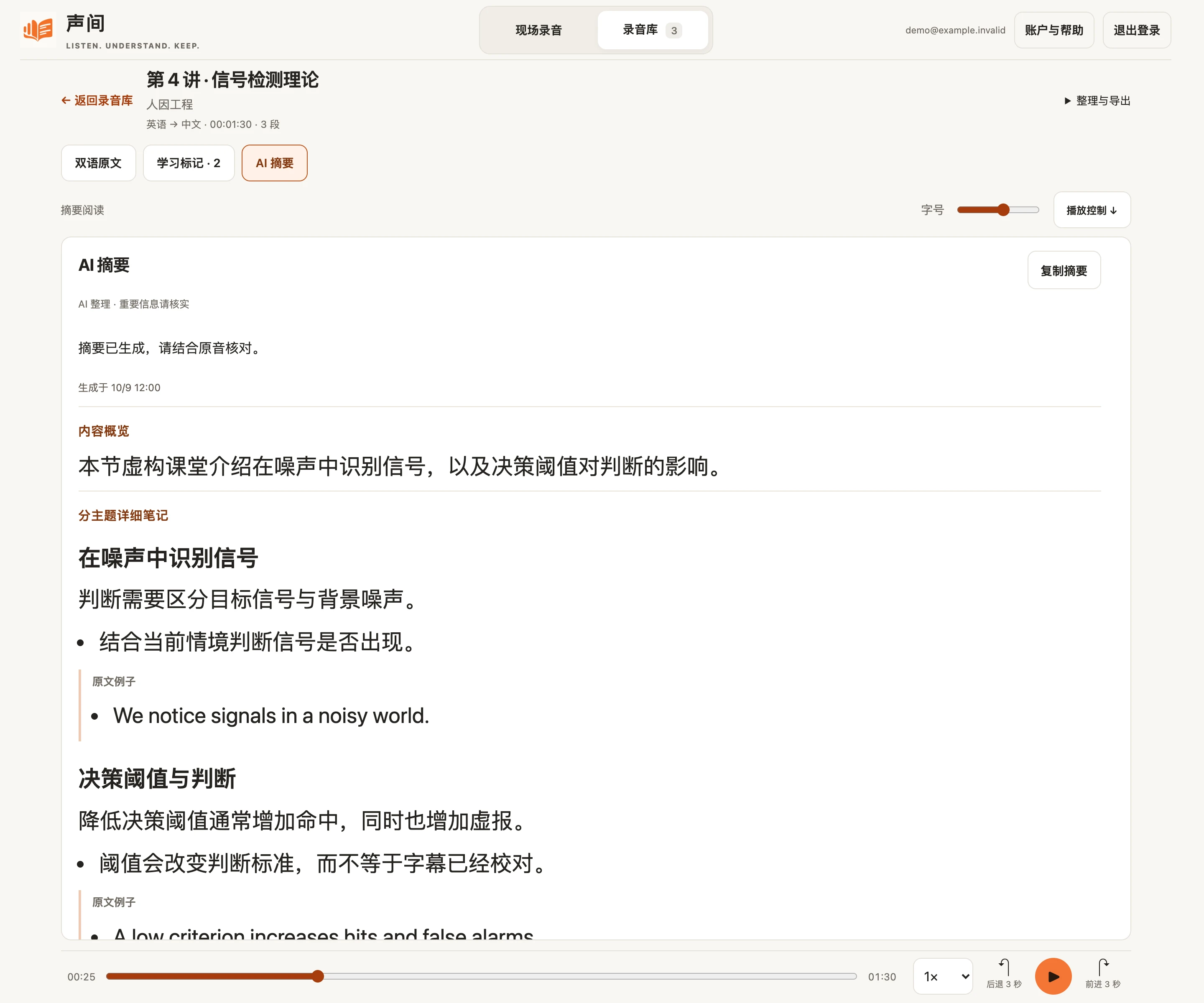
Study notes group an overview, topic explanations, details, source examples, explicit tasks, and points needing confirmation. Empty tasks or uncertainties are omitted, and the prompt asks the service to stay within the transcript.
Generation is a deliberate request. Results are cached and replacement requires explicit regeneration; a failed or incomplete request preserves the previous notes. Changing a course or review status does not trigger an AI request. Photos are not sent to the notes service.
The screenshot shows manually prepared notes for the same fictional lesson. Model output still requires checking against the bilingual transcript and original audio.
Organize lessons for the next review
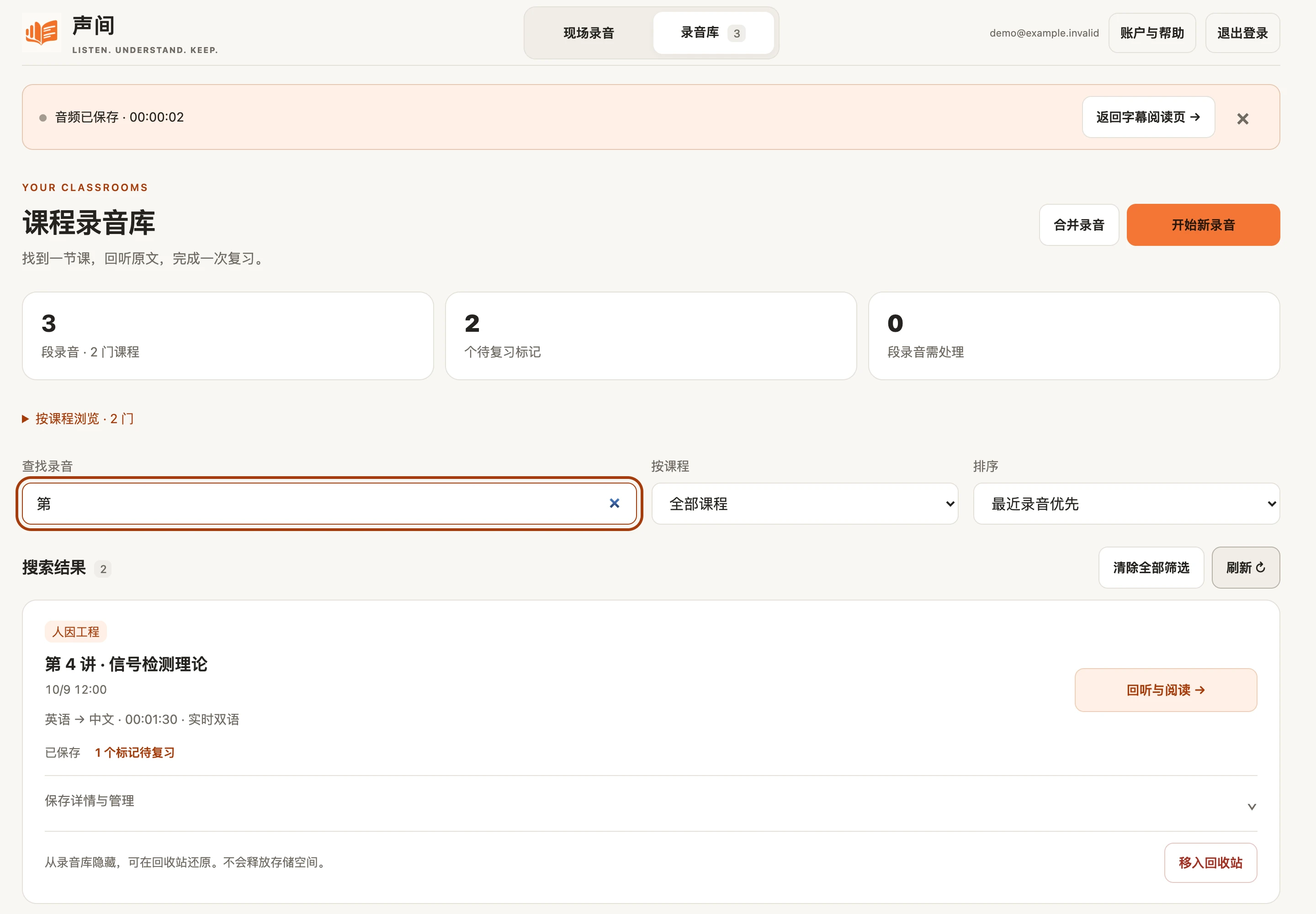
Course labels and filters make the recording library useful across multiple lessons. Course filtering combines with name, date, and language search, while a pending-review filter helps a learner find recordings with questions still to revisit.
Course assignments and manual review status persist with the recording and its archive. The saved-audio state remains separate from review progress and cloud-backup status; completing one does not silently complete the others.
Reading across screen sizes
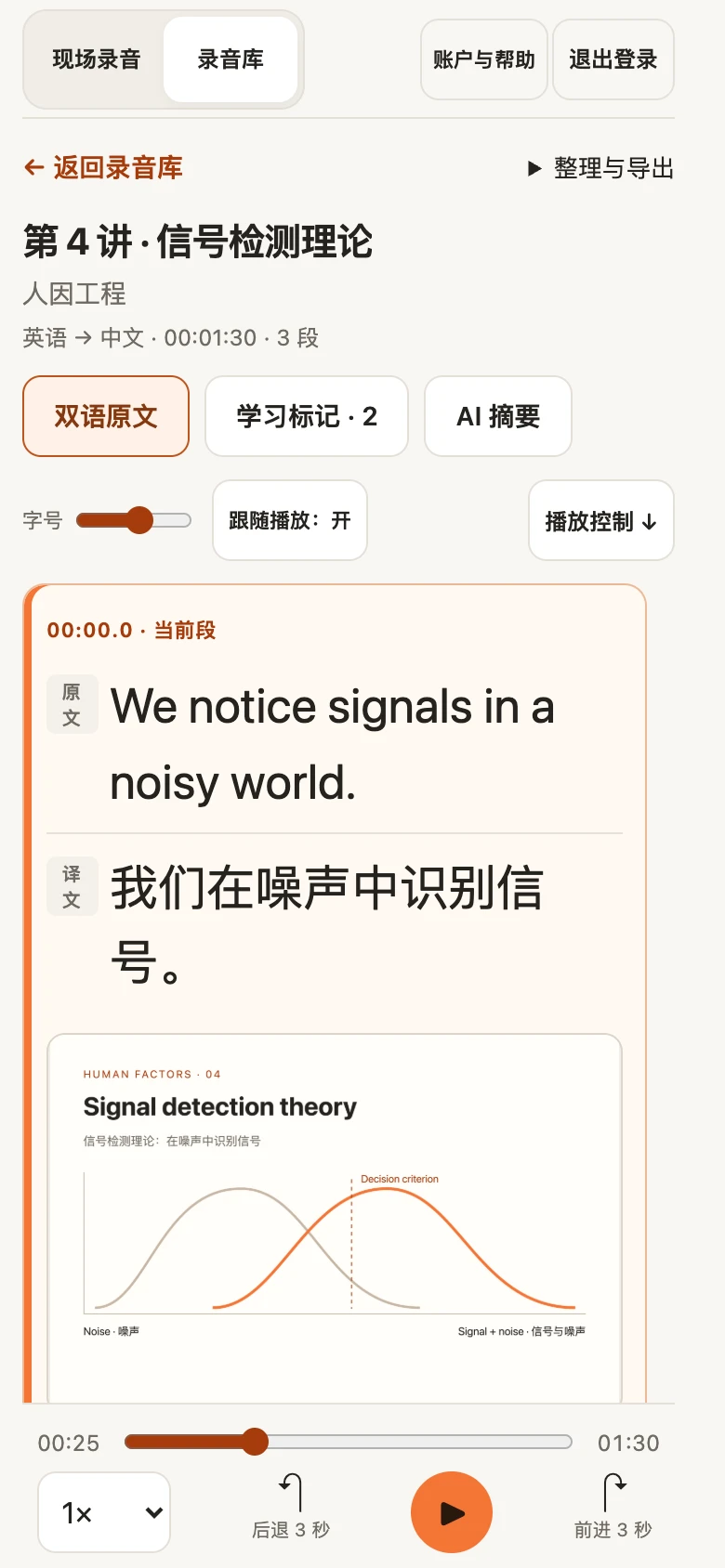
Narrow layouts keep the reading area and playback controls reachable. Learning markers scroll within their own list, while the player stays available; photos can be enlarged without accidentally starting playback.
The image is a fresh capture of actual components at a simulated 390-pixel viewport. Earlier interface checks covered short screens, large text, keyboard access, and reading-position retention. Physical-device acceptance of the combined photo, marker, and long-lesson workflow remains a separate check.
Documented iteration: issue, change, check
These examples come from the September 29 interface review and isolated browser checks. They are concrete implementation revisions, not before-and-after participant performance measures.
- 01
A crowded live workspace
Inactive settings consumed reading space. They now collapse during capture; the simulated landscape iPad layout retained about 476 px for live text.
- 02
Secondary controls displaced the text
Export details moved into a popover. The browser check confirmed that opening export information did not change reading-area height.
- 03
Reading context was lost
The notes instance is retained after first visit. A 32 px-font check preserved a 374.5 px scroll position after switching away and back.
- 04
Search depended on the current title
Language aliases and direction codes now participate in search. Renaming a synthetic recording did not remove it from an English-language query.
A completion message must say what actually completed
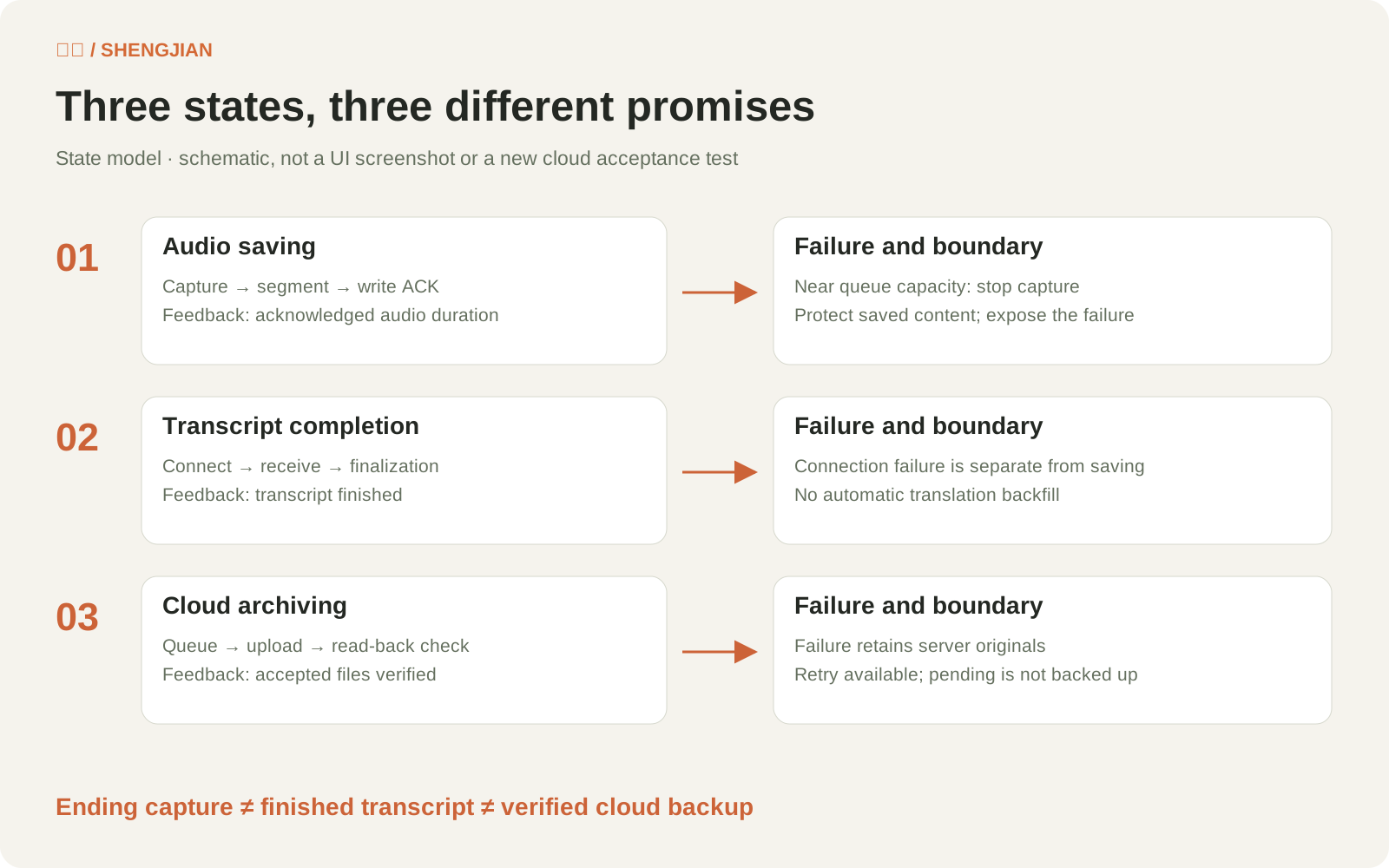
Ending microphone capture, finishing the transcript, and verifying the cloud archive remain independent events. Photos introduce another pending-save condition, so saved audio can coexist with an image still waiting to upload.
With durable device storage available, short upload failures can retry without immediately ending capture. The app stops when the pending queue approaches its capacity or saving can no longer continue safely, and keeps a recovery path. A recognition disconnect is reported separately; the missing interval is not automatically translated.
Architecture: separate the live path from the durable path
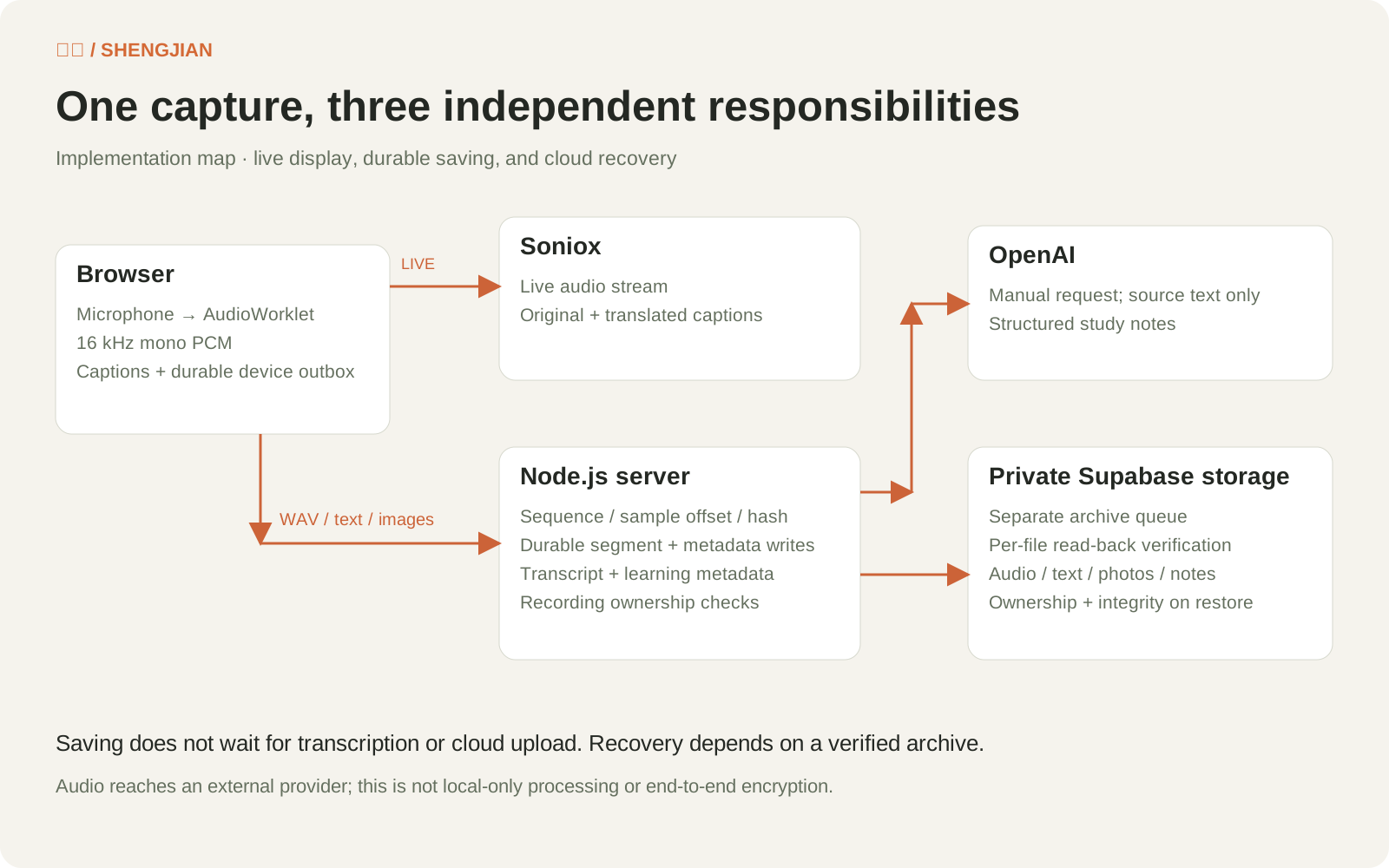
The browser streams PCM to the transcription provider while packaging WAV segments for the server. Sequence numbers, sample offsets, and hashes validate saving. Classroom photos and learning markers use audio sample positions; photos have a separate persistent device queue.
Course settings, recognition terms, review state, photos, transcript, audio, and notes travel with the recording archive. Cloud transfer remains a separate job with read-back verification. Notes receive transcript text, while classroom photos stay out of both the transcription stream and notes request.
Recovery: check the recording, not just the download
Recovery must restore a usable recording with the correct ownership and supporting material. Earlier isolated drills checked audio hashes, transcript, notes, title, and owner, and rejected corrupt objects, wrong accounts, and attempts to overwrite an existing recording.
An October 9 synthetic drill against real private cloud storage also restored photos, course and term settings, manual review state, and merged recordings in independent empty directories. This is documented storage evidence, not a test of real classroom recognition, long iPad sessions, or full host and DNS failover.
Private access and deliberate resource use
Pre-created accounts and server-side recording ownership define the access boundary. A recording URL is not sufficient permission to read another account’s material. Audio reaches the transcription provider; audio, text, photos, and study metadata are saved on the server and in private cloud storage. This is not end-to-end encryption or local-only processing.
Notes have per-account and service-wide concurrency limits, cached results, and explicit regeneration. The app distinguishes estimated AI use from a supplier bill. Private-beta quotas reject new requests at the limit while preserving access to existing recordings.
Evidence: what was checked, and how
Real use, user-reported acceptance, and isolated failure drills answer different questions. I keep those evidence types separate rather than combining them into a single reliability or learning-effectiveness claim.
- Real recording
- A 3,116.456-second recording and completed cloud archive are documented; the user accepted the roughly one-hour run. A two-hour test was explicitly cancelled.
- Account and accessibility checks
- The user confirmed that two accounts could not see each other’s recordings and completed iPad VoiceOver acceptance. This is not a full WCAG audit.
- Isolated UI checks
- September 29 checks covered focus, text size, search, scroll retention, and layout. October 9 synthetic component checks covered photos, marker replay, course filtering, and manual review persistence. Those checks do not establish real-device or learning-effectiveness results.
- Failure and recovery checks
- Independent-process drills check integrity and rejection paths. Documented real-cloud checks include an earlier single-recording recovery and an October 9 synthetic recording/photo/study-state drill. Full host and DNS failover remain untested.
What I learned: make each promise explicit
The difficult design work was deciding what each state promises. A visible translation, saved audio, an uploaded photo, a reviewed question, and a verified cloud copy are different outcomes. Keeping those distinctions visible makes the classroom-to-review workflow easier to reason about.
The next evaluation should ask new invited learners to prepare a lesson, mark a difficult moment, capture a slide, replay it, and return to their pending questions. Task completion, errors, and whether questions are actually revisited would test the workflow. This is proposed work, not a completed participant study.
Explore more work
Clipmori
A native macOS clipboard history app built around an everyday need: find something copied earlier, preview it, and paste it again.
View case studyHelmline
A native iPhone client for self-hosted AI agents. Independently designed, built, and released on the App Store. Requires your own compatible Hermes Gateway.
View case study